A Local Web Page for Your OVOS Device

JarbasAl
OVOS Contributor
Configuring an OVOS device has always meant editing mycroft.conf by hand,
or reaching for one of several small, single-purpose tools: one to edit
YAML, another to watch the message bus, another to manage plugins.
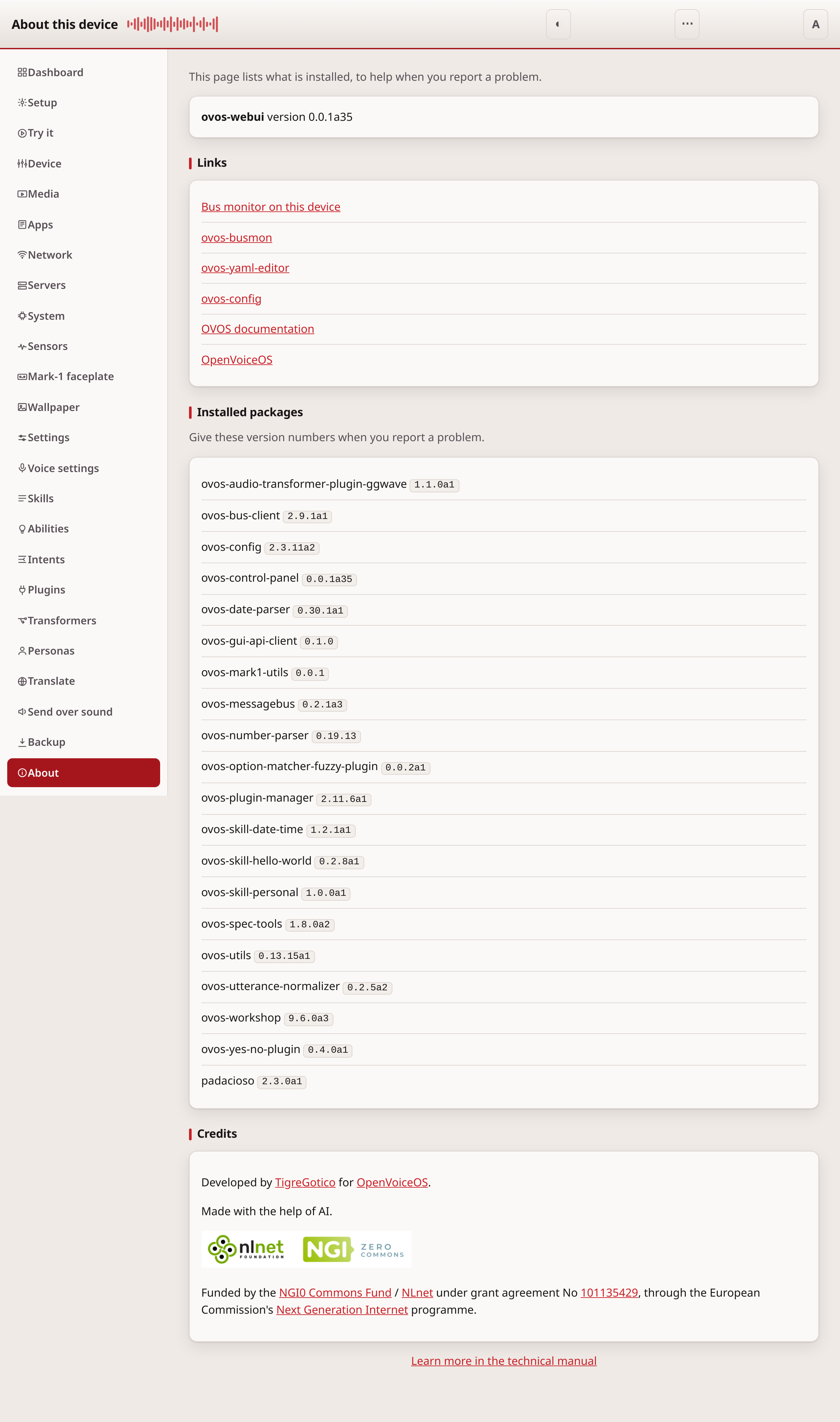
ovos-control-panel
brings those into one local web page that runs on the device itself.
What it does
The control panel has one page per job:
- Dashboard, shows whether the message bus and each OVOS service answer.
- Settings, edits your layer of
mycroft.conf, as a form or as raw JSON or YAML. - Skills, changes the settings of each installed skill.
- Plugins, finds OVOS plugins and installs them on the device.
- Personas, builds and edits personas, the ordered list of solvers that answer you.
- Translate, sets the language a skill speaks and listens in.
- Backup, downloads a copy of your settings, and restores one.
- About, lists installed package versions and useful links.
There is no cloud account and no internet connection required. Every file the page needs ships in the package, and it works from a phone on the same network as the device.
Install and run
pip install --pre ovos-control-panel
ovos-control-panel
The package has prerelease versions only, so --pre is needed. That starts it bound to 127.0.0.1:8500, reachable only from the device
itself. Version 0.0.1a41 answers its own status route like this, with no token set:
$ curl http://127.0.0.1:8500/api/status
{"version":"0.0.1a41","host":"127.0.0.1","auth":false,"signed_in":true,"insecure":false,"warning":null,"has_token":false,"lang":"en-US"}
``` To reach it from another device on the network, bind it more openly
and set a token:

```bash
ovos-control-panel --host 0.0.0.0 --token my-secret
With a token set, the page asks you to sign in once and remembers you in a cookie. The token itself never appears in a URL, a log, or browser history. Without a token on a non-local address, the page shows a red warning banner instead of silently trusting the network.
To run it as a persistent service, a systemd user unit works the same way as any other OVOS service; see the install docs for the unit file. The service starts even when the message bus is down; the dashboard then simply reports that the bus does not answer, rather than failing to start.
Backups before every write
Every save first copies the previous version of the file it is about to
change into a .ovos-webui-backups directory next to it, named with the
time of the save. The last twenty copies are kept. Undoing a bad settings
change is copying a backup back over the file, with no separate restore
mechanism to learn.
The frontend leaned on AI
Backend and plugin code we can write and review ourselves without much trouble. Visual design is not our strength. For the control panel's UI (layout, spacing, component choices, the responsive behavior across a phone screen and a desktop browser) we used AI deliberately, because it does that job better than we do.
Every AI-assisted change still went through the same gate as any other change: a human read the diff, an adversarial review tried to break it, and the result was run on a real device before it shipped. AI wrote code; it did not decide what shipped. That gate had teeth: one review pass (ovos-control-panel#65) found and removed six controls that looked functional but silently did nothing, including one that installed a plugin into the wrong container.
Where it fits
The control panel writes to the same configuration layers as
ovos-config, reads the
plugin lists from
ovos-plugin-manager,
and asks ovos-core services
about their status. If you only need to watch bus traffic while debugging
rather than configure the device, that is a separate, smaller tool,
ovos-busmon, which has
its own post. If you
only need to edit mycroft.conf without the rest of the dashboard, there is
also the smaller ovos-yaml-editor.
The full page-by-page guide, including a first-run walkthrough, lives in the
repository's docs/
directory. Bugs and questions go to the issue tracker.
The control panel's own About page carries the same disclosure: "Made with the help of AI." We put it there because it is true, not because we have to, the same way we disclose the project's funding below. No hedging, no defensiveness, just what helped build the tool you are looking at.
This work is part of the OpenVoiceOS From Beta to Breakthrough milestone, funded through the NGI0 Commons Fund, a fund established by NLnet with financial support from the European Commission's Next Generation Internet programme, under the aegis of DG Communications Networks, Content and Technology under grant agreement No 101135429. Additional funding is made available by the Swiss State Secretariat for Education, Research and Innovation (SERI).
Help Us Build Voice for Everyone
OpenVoiceOS is more than software, it's a mission. If you believe voice assistants should be open, inclusive, and user-controlled, here's how you can help:
- 💸 Donate: Help us fund development, infrastructure, and legal protection.
- 📣 Contribute Open Data: Share voice samples and transcriptions under open licenses.
- 🌍 Translate: Help make OVOS accessible in every language.
We're not building this for profit. We're building it for people. With your support, we can keep voice tech transparent, private, and community-owned.